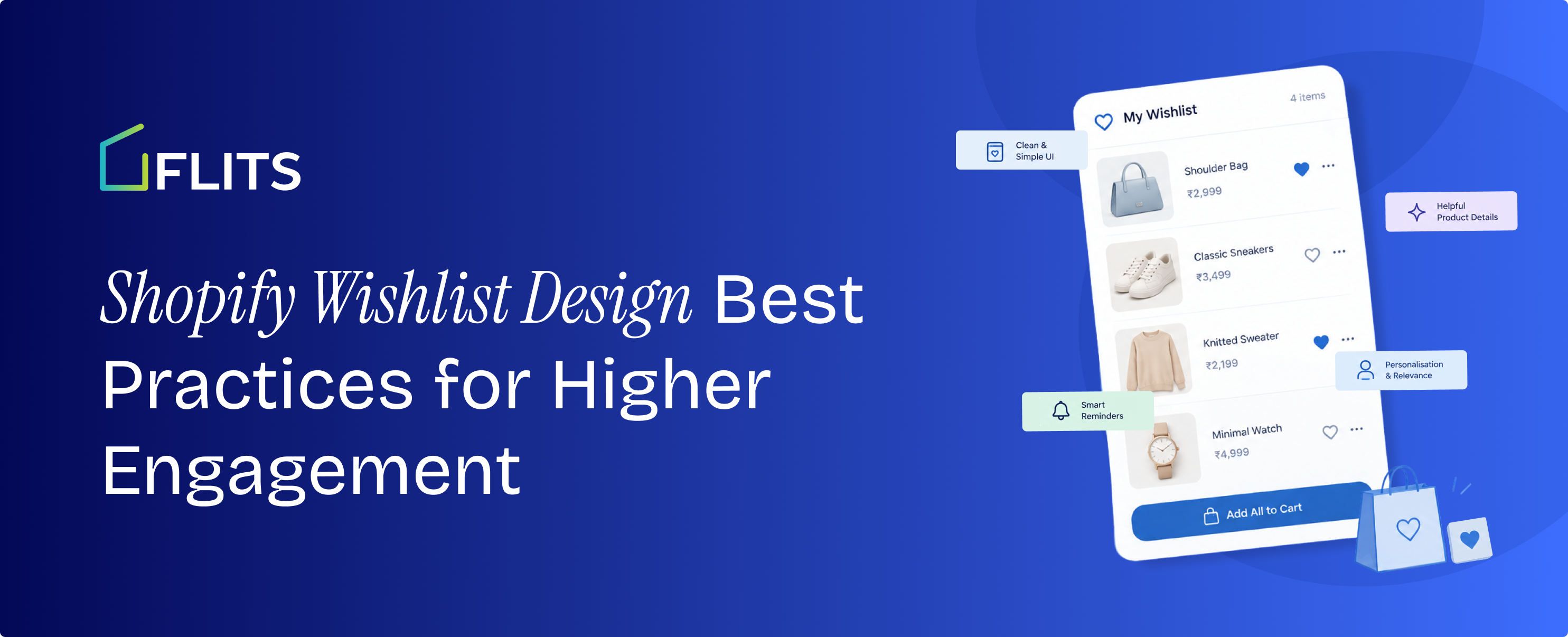
A wishlist is a small piece of interface with a big job. Shoppers tap a heart, and a moment later the store has learned which product they want. Whether they tap it at all, and whether they come back to the list, comes down to design: where the button sits, how it responds, and how easy the saved list is to act on.
This guide covers ten design rules for the button, the page and the follow-up, in the order a shopper meets them. Each rule is practical enough to apply in an afternoon.
Key Takeaways
- Put the save button where the decision happens: next to add to cart on product pages and in a consistent corner on collection cards.
- Design every state of the button (default, saved, loading, error) and confirm each action instantly.
- Let guests save first and ask for an account later. Baymard's research lists forced account creation among the reasons shoppers abandon.
- Save the exact variant, and make the wishlist page a place to act, with price, stock and add to cart on every card.
- Keep tap targets large, contrast high and the button labelled for screen readers.
- Measure adds, add-to-carts from the list and saves that become purchases, then change one thing at a time.
1. Choose a label and icon shoppers understand
The heart icon is familiar, but the word beside it matters. Bizrate Insights found that 49.04% of surveyed shoppers never use a wishlist. Its report suggests one reason: the name "wishlist" can sound like a social feature, and it recommends alternatives such as "favorites" or "save for later" for personal shopping.
Pick the label that fits your catalog. A gift-heavy store can keep "wishlist". A fashion or home store may do better with "Save for later" or "Favorites". If you use an icon alone, add an accessible name (rule 8) and keep the same icon everywhere, so shoppers learn it once.
Our comparison of wishlist and save for later explains when each label fits.
2. Place the button where decisions happen
Shoppers decide in three places: on the product page, on collection cards, and in the cart. Cover all three.
- Product page: put the button within reach of the add-to-cart button, on the same row where space allows. It should read as the quieter alternative to buying now.
- Collection and search cards: use a consistent corner of the image, usually top right, so the position is predictable across the grid. Avoid placing it where horizontal image swipes happen.
- Cart: offer "save for later" next to each line item, so a shopper who hesitates keeps the product instead of deleting it.
- Header or account area: show a wishlist count so the list feels like a destination, not a dead end.
Placing the list inside the account area gives returning shoppers one home for orders, rewards and saved items. That is the idea behind the Shopify customer account page, where the wishlist sits beside order history.
3. Design every state of the button
A wishlist button has more states than most themes design for. Draw all of them:
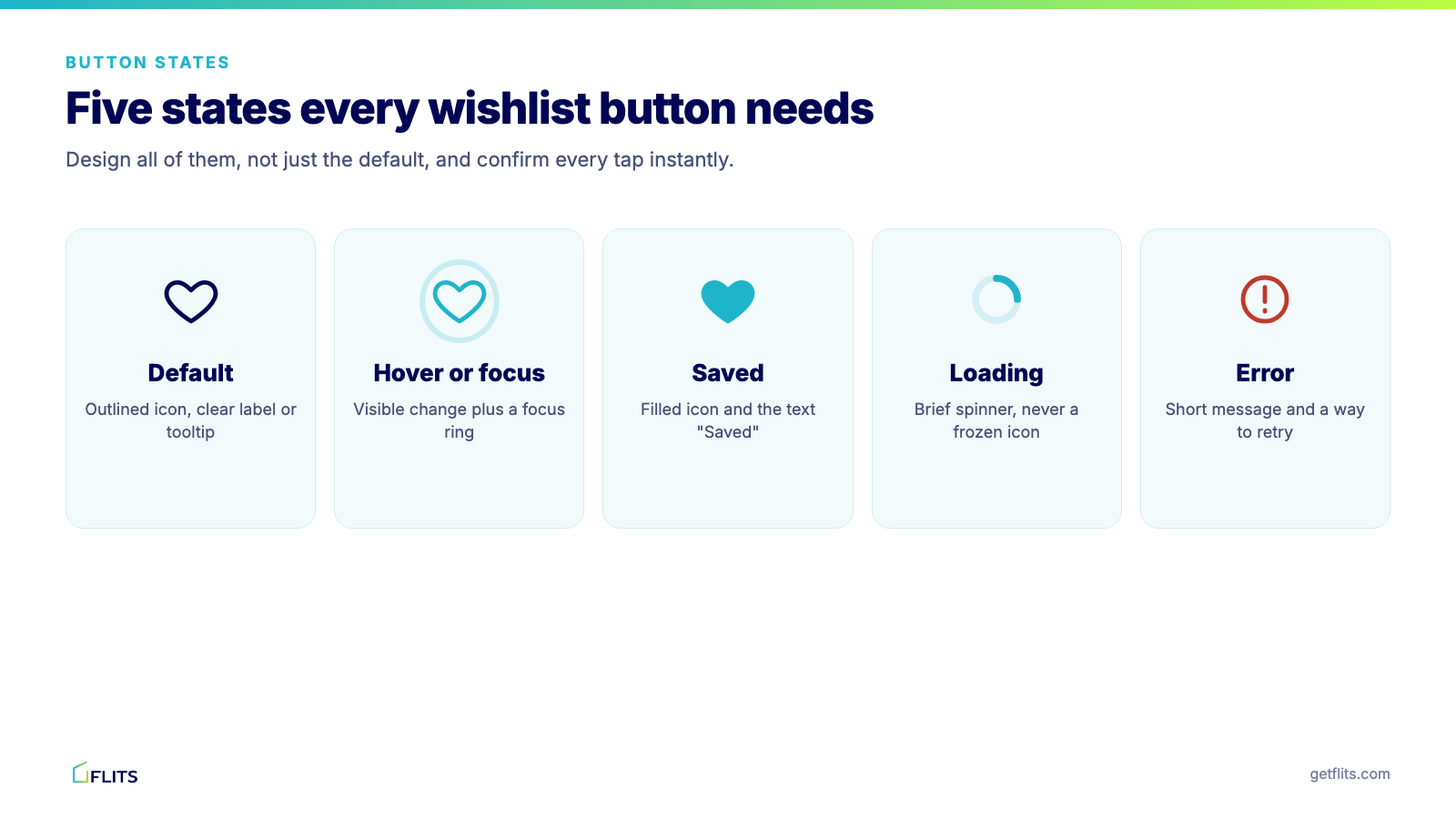
Feedback should be immediate. Update the icon the moment the shopper taps, then confirm in the background. A small toast with a "View wishlist" link tells them the save worked and shows where it went. Without confirmation, shoppers tap twice, and the second tap quietly removes the item.
4. Let guests save before they sign up
A wishlist that demands a login before the first save adds friction at the moment of interest. Baymard's cart abandonment research lists forced account creation among the reasons shoppers leave, at 18% of the non-browsing reasons in its data, and Bizrate names the need to register or sign in as a major reason people avoid wishlists.
The design answer is a guest wishlist. Let the shopper save, then offer an account at a moment of value: after a few saves, or when they want the list on another device. Our write-up on guest and logged-in wishlists covers the trade-offs, and the guide to converting guests into sign-ups shows prompts that work.
Make the prompt specific. "Create an account to keep this list on every device" earns more trust than "Sign up now".
5. Save variants, not just products
A shopper who saves a jacket has usually chosen a size and a color. If the wishlist stores only the product, they must pick the options again later, and the list loses its value.
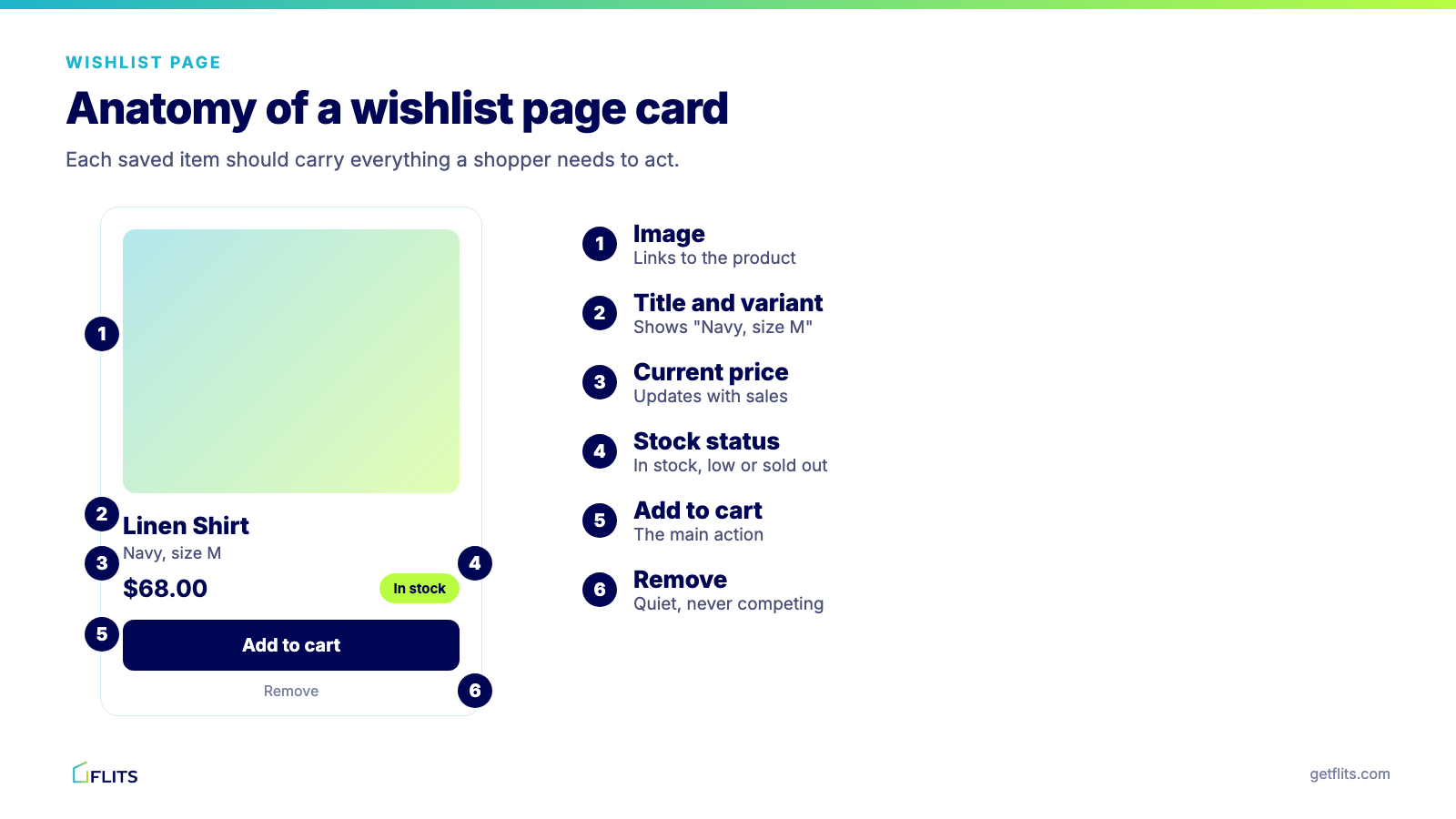
Save the selected variant and show it on the wishlist card: "Navy, size M". If no variant is chosen, save the product and let the shopper select one from the list. Variant-level saves also make restock alerts accurate, because the shopper is waiting for one exact item.
6. Build the wishlist page as a place to act
The wishlist page should help shoppers finish what they started. Each card needs five things: image, title with the selected variant, current price, stock status and an add-to-cart button. Beside them, a quiet remove control.
Then add the features that save effort:
- Bulk actions: "Add all to cart" for shoppers who save a set, such as a room or an outfit.
- Multiple lists or collections: a way to separate "gifts" from "for me". See the guide to multiple wishlists on Shopify for when this helps.
- Sharing and notes: a share link and an optional note turn the list into a gift tool.
- An empty state: a friendly message and a few product suggestions, never a blank page.
Keep the page clean. Our earlier piece on wishlist page design argues for fewer competing promotions, and that still holds: the list is not the place for a pop-up.
7. Design for thumbs first
Most wishlist taps happen on a phone, so size and position decide whether a tap lands.
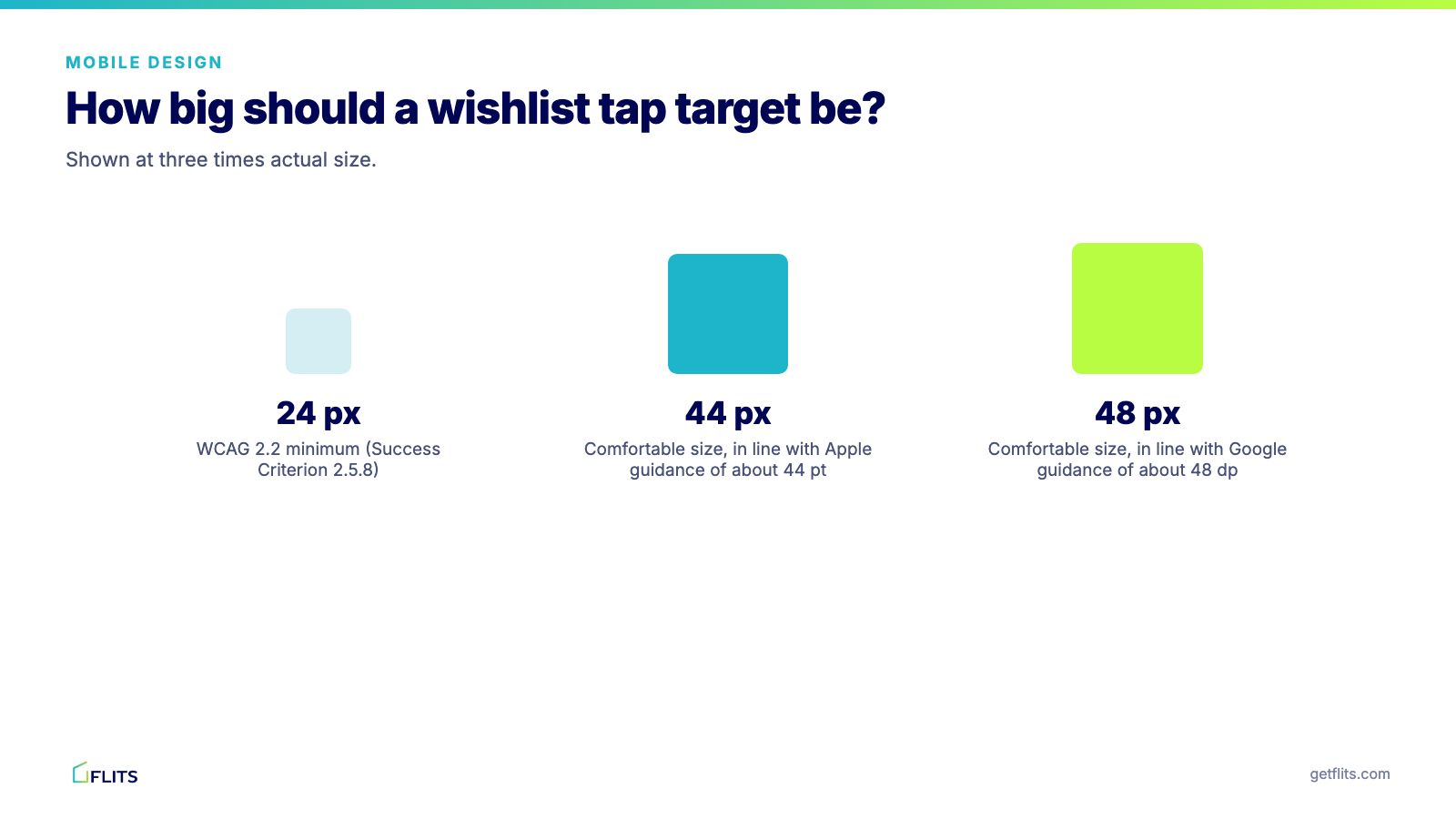
- Size: WCAG 2.2 sets 24 by 24 CSS pixels as the minimum target size (Success Criterion 2.5.8). Apple and Google design guidance suggests larger, roughly 44 points and 48 dp. Aim for 44 pixels or more.
- Spacing: keep the save button away from the product link and the quick-add button, so a tap on one never triggers another.
- Reach: put the primary action, usually add to cart, within easy thumb reach on the wishlist page.
- Weight: the wishlist page should load fast and avoid layout shift. A button that jumps as the page settles gets mis-tapped.
Test on a real phone, with one hand, before you test anywhere else. Our guide to mobile store optimization covers the wider mobile checklist.
8. Make the wishlist accessible
Accessible design widens your audience and often improves everyone's experience.
- Name the button. An icon-only heart needs an accessible name, such as "Add Linen Shirt to wishlist". Include the product name so a screen reader user can tell buttons apart.
- Announce the state. The W3C's ARIA Authoring Practices describe toggle buttons with aria-pressed, so assistive tech reports "pressed" or "not pressed".
- Check contrast. WCAG 2.2 asks for a 3:1 contrast ratio for interface components such as an outlined icon, and 4.5:1 for normal text.
- Do not rely on color alone. A filled icon and a text change tell the shopper "saved" even when they cannot distinguish red from grey.
- Support the keyboard. The button, the wishlist page controls and any toast link must be reachable and visible when focused.
9. Design the alerts that bring shoppers back
The wishlist keeps working after the shopper leaves, through the messages you send. Treat those messages as part of the design.
- Back-in-stock alerts are the most direct. The shopper told you they want that exact item. Our Notify me back-in-stock feature sends them automatically.
- Reminders should show the saved product, its image and variant, and one button. Wait a few days before the first one. For ideas on timing and copy, see how wishlist reminder emails increase repeat purchases.
- Consent first. Ask for an email address at the point of saving or signing up, and state clearly what you will send.
An alert should feel like a service the shopper asked for, not marketing they did not.
10. Measure, then iterate
Design decisions should be tested, not assumed. Track four numbers:
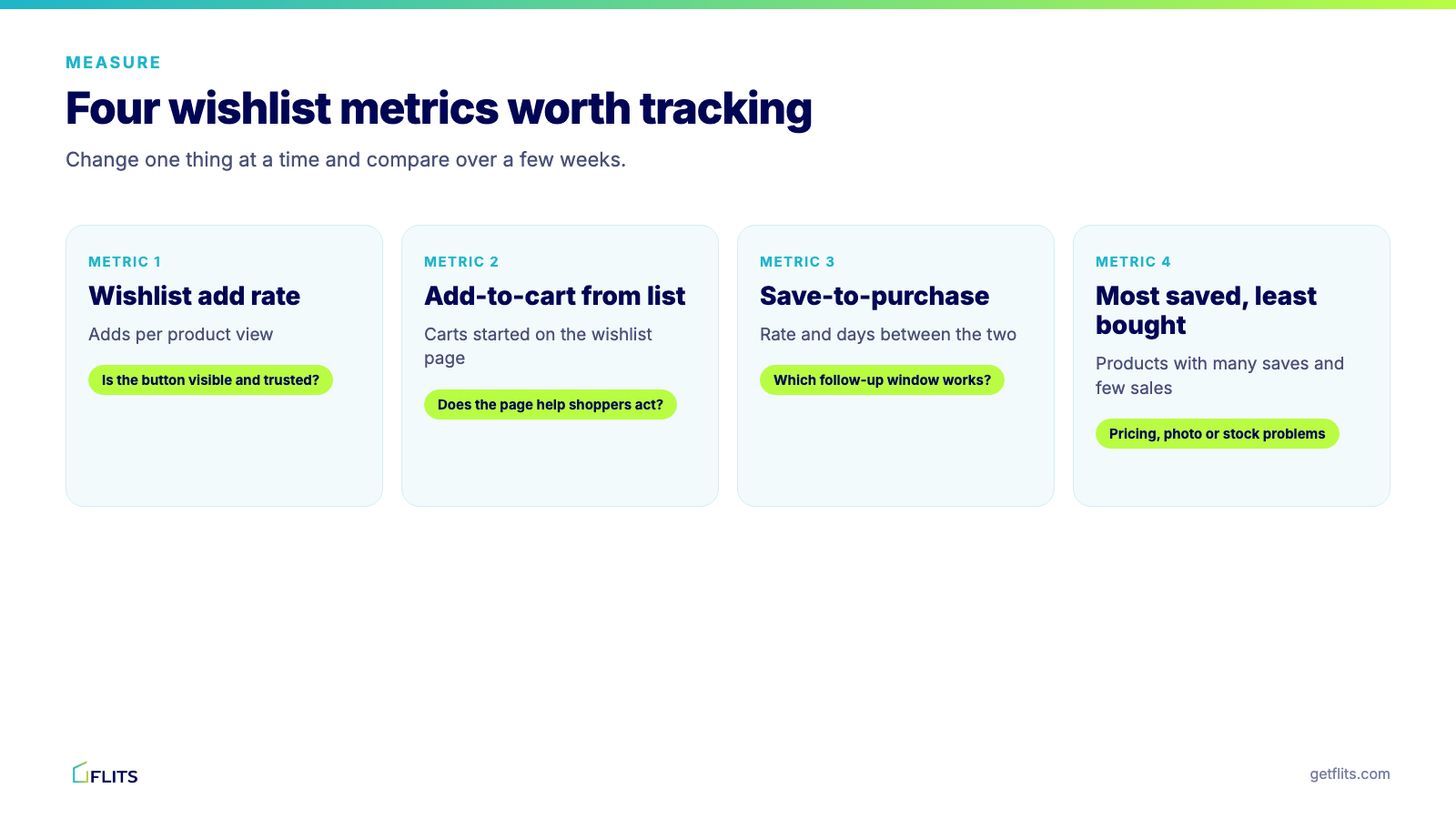
Change one thing at a time, such as button position or label, and compare over a few weeks. Our article on what your wishlist analytics tell you explains how to read these numbers.
How Flits Wishlist handles design for you
Most of the rules above need theme work, testing and upkeep. Flits Wishlist builds them into the app, so you can apply them without touching code.
You get the button on product pages, collection pages and a dedicated wishlist page, with icon-only or icon-with-text styles and control over the icon, text, background and border colors. Shoppers can save a specific variant, keep curated collections, add a note, share a list and add one or many items to the cart in a click. Wishlisted products are highlighted in the catalog, a tag shows when a saved item is already in the cart, and "save for later" works at checkout.
The wishlist also appears in the customer account page and mini account drawer, so saved items stay with orders and rewards. Guest wishlists let visitors save before they sign up, and the layout is mobile responsive with translations in more than 20 languages.
On the merchant side, the Customer Activity Timeline and wishlist analytics show most-wishlisted products, wishlist-driven sales and out-of-stock demand. The Unlimited plan at $19 a month adds Notify me back-in-stock alerts, CSS customization and Klaviyo integration, and a free plan covers the core wishlist. Setup takes minutes, and the step-by-step setup guide walks through it. Try Flits Wishlist and design your list around what shoppers actually do.
Conclusion
Good wishlist design is mostly about removing doubt. The shopper should find the button without hunting, trust that a tap worked, return to a list that shows exactly what they saved and be able to buy in one more step. The rest is accessibility, speed and follow-up.
Start with the three biggest levers: button placement, guest saving and a wishlist page built for action. Then measure add rate and add-to-cart from the list, and refine. If you want the wider strategy around the list, our guide to wishlist best practices shows how to turn saves into sales. Book a demo today!
Frequently Asked Questions
Where should the wishlist button go on a Shopify product page?
Place it close to the add-to-cart button, usually on the same row or directly beneath it, styled as the secondary action. On collection cards, use a consistent corner of the image, commonly the top right.
Should a Shopify wishlist require login?
No. Requiring an account before the first save adds friction when interest is highest. Let guests save, then invite them to create an account to keep the list across devices.
What size should a wishlist button be on mobile?
WCAG 2.2 sets a minimum of 24 by 24 CSS pixels, and common design guidance recommends around 44 pixels or more for comfortable tapping. Leave space between the wishlist button and neighboring links.
What should a wishlist page show for each item?
Image, product title with the selected variant, current price, stock status, an add-to-cart button and a remove control. Bulk add-to-cart, sorting and sharing are useful additions.